Automated Intake · Prototype
Ventari client portal
Three screens: what a client does while onboarding, what their portal looks like afterwards, and how the Ventari team sees every client. Each is labeled below. Every client screen is built from that client's own agreement, so nobody designs a screen per client.
Prototype, not live. It is a clickable picture with sample content. It saves nothing, sends nothing and connects to nothing. Some Rising Origin requests are illustrative examples. The spec says the portal goes live for a client only after production review and Ventari's approval.
Screen 1 · Client portal
Client portal during onboarding
This is Nick’s portal while he onboards. It has the same tabs he keeps after launch: Home, Onboarding, Deliverables, Launch and Reports, with the documents on Home. Onboarding is the clear next step, so it carries the tag and opens first. The rest are visible but quiet until they are needed. Pick a stage, open an item, and use the Client view and Team view switch at the top to see the team’s side.
 Ventari
Welcome, Nick
Connect your accounts, confirm your details and approve what we build. Everything else here opens as you go.
Continue onboarding →Your documents
The audit that came with the proposal.
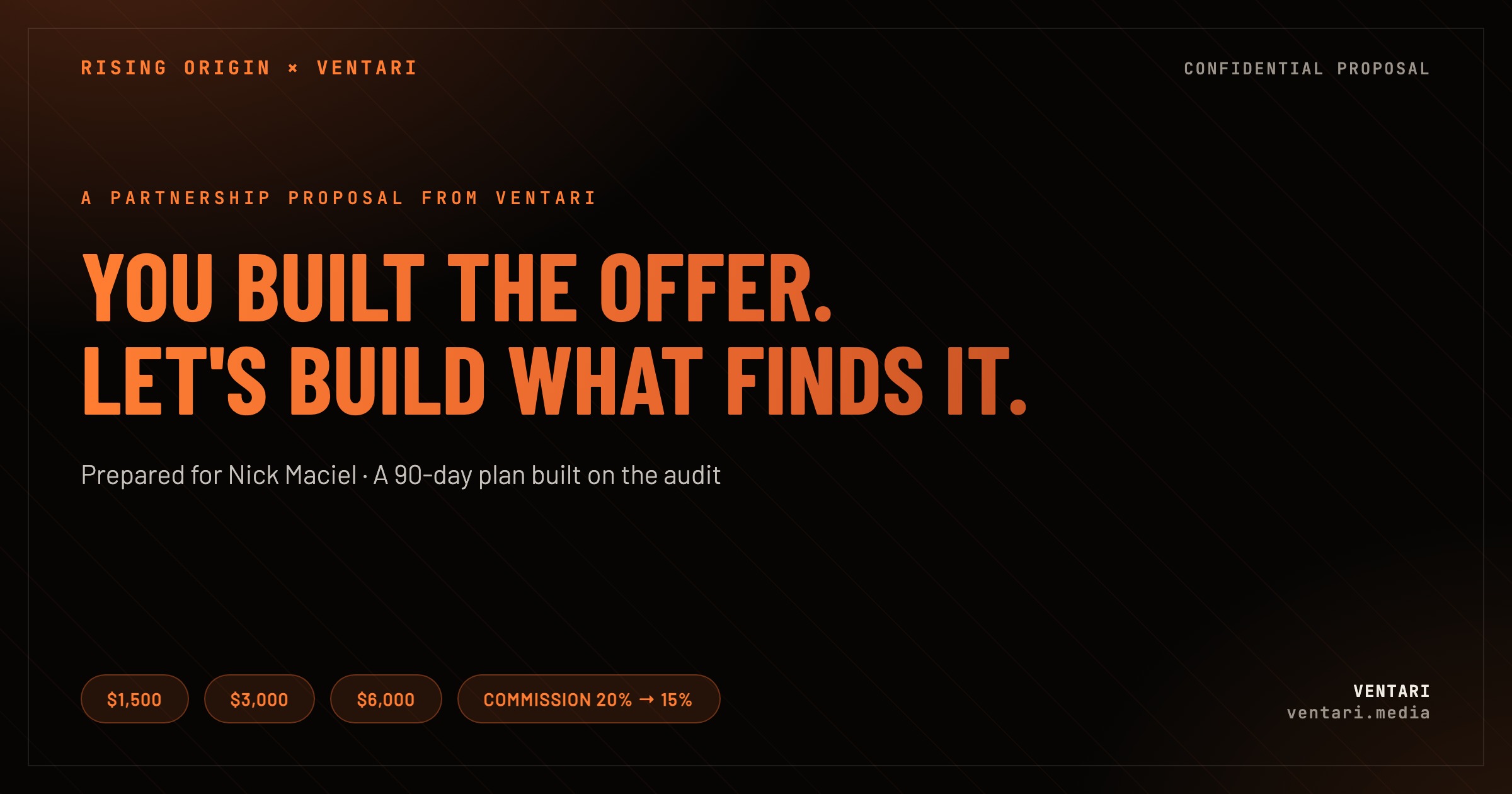
The proposal Ventari sent you.
Your Growth Partnership Agreement and its status.
Your work
- Tracking and source-level attributionUp next
- Meta acquisition engineUp next
- Search, proof, and conversion foundationUp next
- Ninety days of managed acquisitionUp next
- DIY guidance and operating documentationUp next
- A closer voice in scaling and developmentUp next
Straight from your agreement. Each one shows here as Ventari builds it.
Opens once onboarding is done.
Start after ads are running.
- Tracking and source-level attributionUp next
- Meta acquisition engineUp next
- Search, proof, and conversion foundationUp next
- Ninety days of managed acquisitionUp next
- DIY guidance and operating documentationUp next
- A closer voice in scaling and developmentUp next
Straight from your agreement. Each one shows here as Ventari builds it.
- Finish onboardingNeeds you
- Review your ad creativeUp next
- Give your written go-aheadAfter that
- Ads go liveAfter that
No ad spend until you approve in writing.
Your first report arrives once ads are running. After that, a short summary each month.
Screen 2 · Client portal
Client portal after onboarding
The same portal with the same tabs. Onboarding becomes a record kept for reference, and Home now leads with what is next: getting to launch, the deliverables to review and this month’s numbers. Same colours as the journey, as a design draft. States are samples.
VentariWelcome back, Nick
Your documents
The audit that came with the proposal.
The proposal Ventari sent you.
Your Growth Partnership Agreement and its status.
Your work
- Tracking and source-level attributionDone
- Meta acquisition engineDone
- Search, proof, and conversion foundationDone
- Ninety days of managed acquisitionVentari is on it
- DIY guidance and operating documentationDone
- A closer voice in scaling and developmentOngoing
Your reports live here. A short summary arrives each month.
- Tracking and source-level attributionDone
- Meta acquisition engineDone
- Search, proof, and conversion foundationDone
- Ninety days of managed acquisitionVentari is on it
- DIY guidance and operating documentationDone
- A closer voice in scaling and developmentOngoing
Straight from your agreement. Finished work stays here.
- Ad creative approvedDone
- Written go-ahead givenDone
- Ads are liveDone
Ads went live after your written approval.
Your reports live here. A short summary arrives each month.
Screen 3 · Ventari staff portal
Ventari staff portal
Every active client has a card. It uses the thumbnail from that client’s proposal where one exists, and says so where it does not. Click a card to see what that client sees. Only Rising Origin opens today, and each locked card says why.
VentariPreview on a phone. The Ventari app is not optimized for mobile yet.
Client portals
Ventari staff portal. Click a client to see what they see. Visible to the Ventari team in the Ventari app, never to clients.
In onboarding. Opens its client journey.

Proposal thumbnail shown.
Why: No onboarding list has been built from this client’s agreement yet. The portal beta covers Rising Origin only, so this card opens once its list exists.
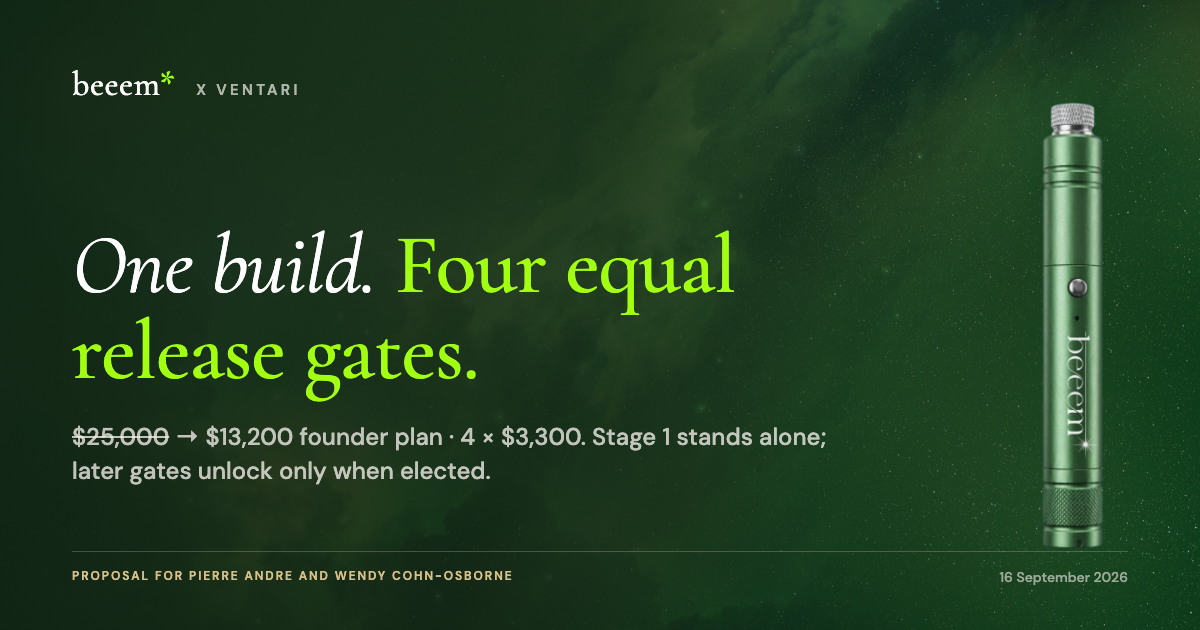
Proposal thumbnail shown.
Why: No onboarding list has been built from this client’s agreement yet. The portal beta covers Rising Origin only, so this card opens once its list exists.

Proposal thumbnail shown.
Why: No onboarding list has been built from this client’s agreement yet. The portal beta covers Rising Origin only, so this card opens once its list exists.
Active client.
Why: Locked: no onboarding list has been built from this client’s agreement yet.
Active client.
Why: Locked: no onboarding list has been built from this client’s agreement yet.
Active client.
Why: Locked: no onboarding list has been built from this client’s agreement yet.
Active client.
Why: Locked: no onboarding list has been built from this client’s agreement yet.
Active client.
Why: Locked: no onboarding list has been built from this client’s agreement yet.
Active client.
Why: Locked: no onboarding list has been built from this client’s agreement yet.
Active client.
Why: Locked: no onboarding list has been built from this client’s agreement yet.
Active client.
Why: Locked: no onboarding list has been built from this client’s agreement yet.
Active client.
Why: Locked: no onboarding list has been built from this client’s agreement yet.
Active client.
Why: Locked: no onboarding list has been built from this client’s agreement yet.
Active client.
Why: Locked: no onboarding list has been built from this client’s agreement yet.
What the client sees
Five stages, always visible. Only what is still open is shown up front, and finished items fold away.
- Stage 1AlignmentWe agree what we are building.
- Stage 2Access & connectionsYou send what we are missing. We check the rest.
- Stage 3Build & configureVentari builds your setup, starting before access is finished.
- Stage 4Test & approveYou review each item and approve it.
- Stage 5Launch & measureWe go live and track results. Ad spend stays on hold until both sides approve in writing.
How a client's list is built
From the agreement, in four steps. These are the Rising Origin numbers in the prototype, checked against the agreement text on 9 Oct 2026. States come from reports dated 30 Sep to 1 Oct 2026, and items without evidence are marked as examples.
- 6scope groups read from the agreement
- 32items they break into, each with a kind of request
- 3already held by Ventari, so the client is never asked
- 4left for the client, each the right kind of request
Seven kinds of requests
Every item is one of these, so a client learns each one once. A client's tick shows as “You marked it complete” and becomes “Confirmed by Ventari” only after we check.
- Send us somethingPaste a link to a shared folder (Dropbox, Drive or OneDrive), then send it.
- Give Ventari accessInvite Ventari to an account. Never share a password.
- Make a change on your sideOne exact change, such as a domain record. We check it ourselves.
- Answer a questionA short form. No secrets.
- Review and approveApprove or ask for a change. Who, when and which version are recorded.
- Book a meetingPick a time, such as the Day-90 review.
- Share your numbersA report each month, with a reminder before it is due.
What is decided, and what is still open
Nothing on this page is switched on for any client. The design here is a draft for review and is not approved.
Decided
- Files and monthly numbers come by a pasted link to a shared folder (9 Oct 2026).
- The client sees five stages, taken from their own agreement.
- Ad spend stays on hold until both sides approve in writing.
Still open
- The design on this page. It is a draft and is not approved.
- Building the portal for real, and where client answers are stored.
- Client sign-in: invitations that need a verified email and a one-time acceptance. It is built and in review, but not applied or switched on.
- Setting up Rising Origin’s account and sending its invitation.
- Running it live with a real client.
- Which other clients get a portal.
Each of these needs its own approval before it happens.
How the screens map
One list of items, shown to the client on screens 1 and 2 and to the team on screen 3. This is a design proposal checked against the portal spec draft v0.4.
| The client sees | The team sees | Basis |
|---|---|---|
| Five stages and “You are here” | The same five stages for each client, with the stage the client is at and how many items sit in each state. | The stages and schedule come from the agreement, not a fixed list (spec section 4). |
| An item in the client’s wordsNeeds you, You marked it complete, Ventari is checking, Done, Ventari is on it, Up next, On hold | The same item with its internal state, who changed it and when. Internal names never reach the client. | The client vocabulary is fixed; projections map to it (spec section 4). |
| “You marked it complete” | A claim awaiting confirmation, with its age, in the Command Center. A teammate confirms with a reason. | The staff inbox is the existing Command Center, not a second queue (spec section 7). |
| How the list is built, Request types | Shown in Team view only. The client does not see how items are generated or the list of request kinds. | Decided 9 Oct 2026. |
| Evidence and “Example” | Each item shows the evidence behind its state, and whether the state is real or an example for illustration. | Team view of the prototype. |
| Launch approval and “Ad spend starts” | Ventari signs first, then the client countersigns the same plan version. A separate launch confirmation by an assigned person releases the spend gate. | Written launch approval and spend gate (spec section 5). Approvals never start spend by themselves. |
| A pasted folder link for files and numbers | The link is shown masked to approved staff only. It is not stored in the Brain, GitHub receipts or any public page. | Decided 9 Oct 2026. |
| Brand audit, Proposal and Agreement cards (screen 2) | The same documents, opened by staff from the client’s card in the staff portal. | Documents come from the client’s records. |
| The client’s own pages (screens 1 and 2) | Staff open them read-only from the gallery. Every view is logged with the staff member, the client and the time. | Read-only view as client (spec section 7). |
Detail for agents and careful reviewthe team review page's own wording, unchanged
Source: PORTAL-TEAM-REVIEW.html and PORTAL-PROTOTYPE-SHARED.html in the Ventari workspace, session automated-intake-crm-factory-master-2026-09-28, dated 1 Oct 2026. The prototype shown is the v2 design, a draft that is not approved: the earlier prototype with a design layer on top (same content, same behaviour). The earlier prototype is saved unchanged in the Ventari workspace and is no longer hosted here, because it still carried the earlier Google Drive and shared-inbox wording.
Changed since this text was written (9 Oct 2026): files and monthly numbers now go by a pasted link to a shared folder (Dropbox, Google Drive or OneDrive, view only, no password), not by sharing a Google Drive folder with a Ventari inbox. Where the text below names that inbox, the address has been left out. Where it says a design direction was approved, that applied to the earlier draft only. The current design is not approved (9 Oct 2026).
What changed since the first draft
- Stage 3 now follows the signed agreement. The earlier version showed the CRM, chat assistant and emails, which are not part of the agreement. Those extra builds stay out of the client’s list.
- The fixed eight screens are replaced by one prototype that generates every view from data.
- Videos and a voice note are no longer special screens. They are examples of the “Send us something” request, which now uses a Google Drive folder shared with the Ventari file inbox.
- The timeline uses the agreement’s own phases instead of placeholder dates.
Our answers to the open questions
These are decided, so the prototype follows them. These follow the answers Alex gave and the team’s recommendations.
| Question | Answer |
|---|---|
| Does staff review the generated list before a client sees it? | Yes. The generator reads the agreement, but a Ventari lead checks the items, states and wording first. A client’s list is a promise. After the first review, only changes need review. |
| Who updates item states, and what is checked automatically? | The client’s account lead owns the states. The portal confirms only what it can check safely: a DNS record, a tag on the site, a connection already shown in the CRM. Everything else, such as access invites and Drive folders, is confirmed by a teammate. A client’s click always shows as “You marked it complete” until one of those happens. |
| What counts as done? | Every item states what done means, and Ventari-built items name their test. Access: Ventari can see it in the platform’s user list. Change: our check passes. File: the folder is received and opens. Question: answers read and accepted. Approval: decision recorded. Meeting: held. Numbers: received. Built item: built and tested, with the test named, such as a Meta test event received or a sitemap that returns real XML. |
| Approve item by item, plus a written launch approval? | Yes to both. Creative, rules and pages are approved item by item. Launching ad spend is a separate written approval, typed name and date, because the agreement holds spend until both sides approve in writing. Both approvals are recorded and emailed as a copy. |
| When is Day 1? | When the client’s access is complete. That is when the access and approvals needed for the first build are in place, and the agreement’s timeline counts from it. The account lead records the date, and any change is logged. |
| Should the portal send invitation and reminder emails? | Later. For the beta, Ventari sends the invitation personally. Portal reminders, such as a weekly list of what is outstanding, come after the beta and need email sending built and proved first. |
| How do files reach Ventari? | Decided: Google Drive. The client puts files in one Drive folder and shares it with the Ventari file inbox. WhatsApp stays for quick questions. The client’s owner at Ventari checks that inbox and confirms the folder opens. |
What this does not approve
Approved
The look and the guided, generated approach, as a design direction for review.
Still separate decisions
Any build, the data store, sign-in, Nick’s account, the invitation, the live run, and any write to the Brain.
Checked: measured colour contrast (all text well above the standard), a keyboard-only walkthrough, and the layout at phone width with no sideways scrolling. Not yet checked: other browsers, a screen reader, and real phones.
Checked: measured colour contrast (all text well above the standard), a keyboard-only walkthrough, and the layout at phone width with no sideways scrolling. Not yet checked: other browsers, a screen reader, and real phones.